Display only
Extend the Mac desktop onto a receiver and choose resolution, scaling, and placement per device.
Free core feature Peaceful Journey
Surround Display by Peaceful Journey
Give a spare iPad a useful place beside your Mac. Use it as an extended display and its built-in speakers for stereo, or assign distinct synchronized channels across multiple receivers. Choose display only, speaker only, or display + speaker. First-time pairing requires a six-digit code and receiver approval.
The public Mac packages are Universal 2 Build 10 releases that passed Developer ID signing, Apple notarization, stapling, and Gatekeeper verification. The iPhone and iPad receiver is distributed separately through App Store review.
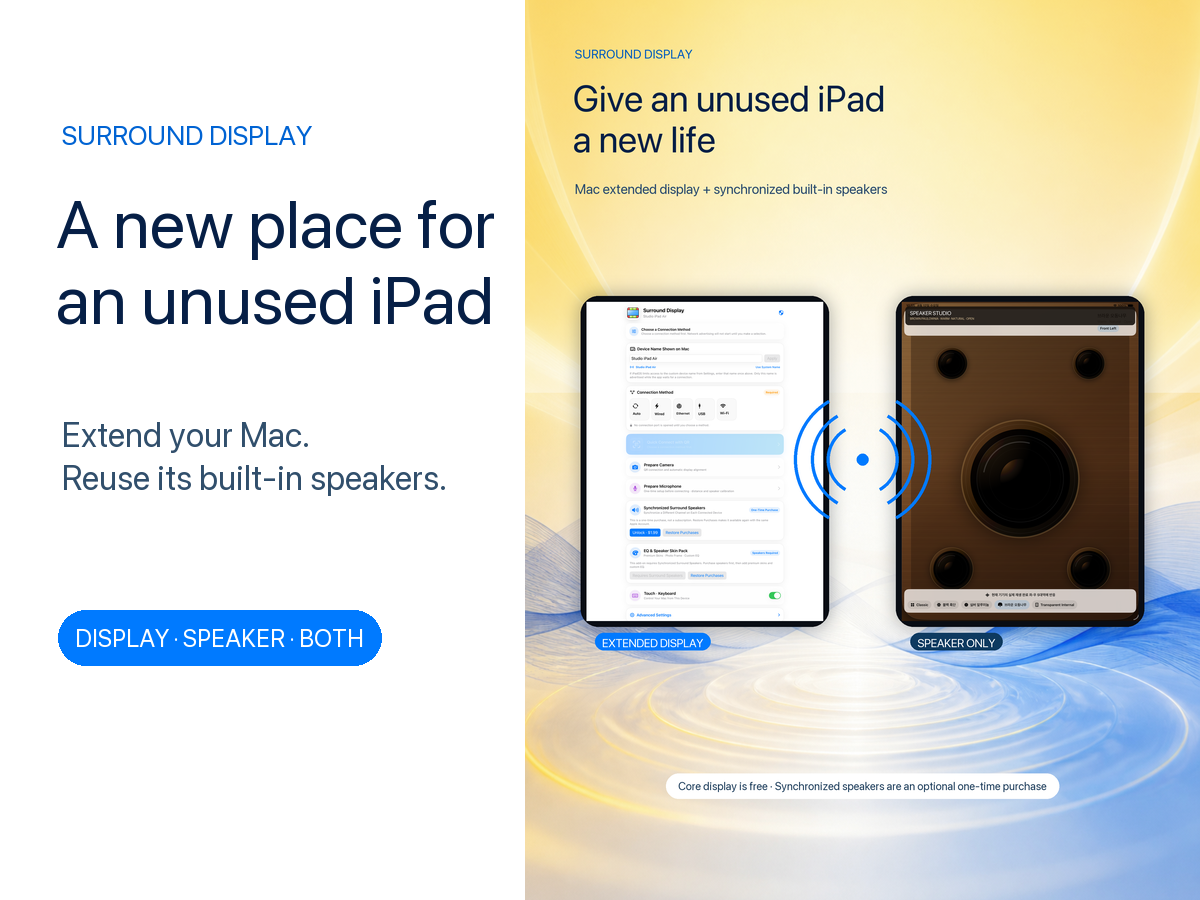
Reuse what you already own
Before buying another monitor or wireless speaker, place an iPad you already own beside your Mac. One receiver can add workspace and stereo playback; two can become left and right displays with distinct synchronized channels.
Speaker playback is an optional one-time purchase. Stereo input is labeled Stereo Upmix—not Dolby, Atmos, or restoration of an original 5.1 mix.
Release status
The Mac controller is named Surround Display. The separate app that turns another Mac into a receiver is named Surround Display Receiver. Both public ZIPs passed Developer ID signing, Apple notarization, and Gatekeeper verification.
Release status · August 21, 2026: iPhone and iPad receiver 0.1.0 Build 10 is ready for submission in App Store Connect. The Mac controller and Mac receiver are published as Universal 2 packages named Surround Display and Surround Display Receiver after Developer ID signing, Apple notarization, stapling, and Gatekeeper verification.
Three connection modes
Display and audio roles are separate. Speaker-only mode is designed not to start video capture or transmission resources.
Extend the Mac desktop onto a receiver and choose resolution, scaling, and placement per device.
Free core featureUse a selected device for stereo or one synchronized channel without video resources, with the chosen speaker skin and volume controls filling the display.
Requires Surround SpeakerUse one receiver for an extended display and a speaker channel on a shared media timeline.
Display and audio togetherSynchronized speakers
Mirroring the same audio and distributing separate surround channels are different modes. The system is being built around scheduled future playback times and measured output skew, not simultaneous packet delivery alone.
Play both left and right channels through one device's built-in speakers.
Assign Front Left and Front Right to two output nodes.
Suggest Front Left, Center, and Front Right while physical-device validation remains beta.
Suggest Front Left, Front Right, Surround Left, and Surround Right.
A stereo source uses matrix-based Stereo Upmix. It is never labeled Dolby, Atmos, or restored original 5.1.
Account for network, buffering, and output latency and track long-running clock drift.
Using the Mac speaker as an independent fifth channel, preserving Native Multichannel input, and automatic room correction remain experimental. We will not advertise completed 5.0 until those paths pass physical acoustic validation.
Speaker-only surface
Changing a skin does not force a new volume interface, and changing the control style does not replace the selected material EQ or room correction.
A dense, controlled material-inspired character with short, weighty motion.
A fast, precise character with machined reflections and transient response.
A warm, natural character with softer driver movement.
A reference-oriented skin that reacts only at model-specific internal speaker positions—without a virtual woofer.
A rotary dial, 5% step buttons, and continuous slider all control the same authenticated group gain.
Tap once for 0%; tap again to restore the previous group volume. This remains separate from muting only this iPad.
Free core and optional purchases
These are planned U.S. launch prices. The App Store purchase sheet determines actual availability and the final local price.
Core
Planned free
One-time IAP
Planned US$1.99
Separate one-time IAP
Planned US$0.99
Purchase and control boundary: Purchase and restore occur only in the iPad or iPhone App Store receiver. The Mac provides the controls, but enables speaker, skin, and EQ commands only after the connected receiver passes StoreKit verification and reports access for the current authenticated session. A local preference or Mac command alone can never unlock a paid feature.
Audio remains fixed to Flat EQ while the EQ & Speaker Skin Pack is locked. Branded skins and confidential EQ profiles will be added only after separate agreements and validation.
Connection security
Wi-Fi, Ethernet, USB, and Thunderbolt paths use the same user-authentication boundary.
Find nearby receivers only through the connection policies the user selected.
Confirm the code shown only on the receiver and approve the connection there.
The user controls trusted-device reconnection and can revoke trust at any time.
Compatibility and permissions
The Mac controller requires macOS 15 or later. The receiver supports iOS/iPadOS 15 or later; versions 15–17 use a reduced display and built-in-speaker interface, while QR, advanced calibration, and remote input require version 18 or later.
The free controller app on the host Mac captures display and system audio and coordinates the session.
Receives a display, direct touch, and an assigned speaker channel.
The separate receiver app uses an iMac, Mac mini, or another Mac as a secondary display.
| Area | Current policy |
|---|---|
| Mac keyboard and mouse | Uses the normal macOS extended-desktop path and must pass click and keyboard regression tests before release. |
| Direct iPhone or iPad touch | Pointer movement, left-click, and drag remain under release validation. |
| Receiver count | One or two receivers are the primary validation range; three or four require explicit Beta opt-in. |
| Audio route | Built-in and wired output are preferred. Bluetooth and AirPlay re-output are warning or initially unsupported routes. |
Camera-assisted layout, microphone-based acoustic measurement, and three- or four-device sessions are experimental or beta. A successful packet transfer alone does not count as a working display, input, or synchronized speaker.
Frequently asked questions
Surround Display and Surround Display Receiver Build 10 for Mac are available from this page. Both ZIPs passed Developer ID signing, Apple notarization, stapling, and Gatekeeper verification. The iPhone and iPad receiver Build 10 will be distributed separately after App Store review.
The core extended-display function is planned to be free. Surround Speaker has a planned U.S. launch price of US$1.99. The separate EQ & Speaker Skin Pack requires Surround Speaker and has a planned U.S. launch price of US$0.99. The App Store purchase sheet determines the actual local price.
No. Stereo input is expanded through Stereo Upmix and is not described as Dolby, Atmos, or restoration of the original 5.1 mix.
One or two receivers are the primary pre-release validation range. Three or four receivers require Beta opt-in while stability, latency, and battery results are measured.
Yes, with an Ethernet adapter recognized by the operating system and a properly powered hub. Throughput is limited by the slowest adapter, hub, or network port.
Active display, audio, and input traffic travels over an authenticated encrypted local path and is not uploaded to Peaceful Journey servers. See the privacy policy for details.
Support and security reports
Include the device combination, OS versions, and reproduction steps. Do not send display content, pairing codes, raw audio, or encryption keys.